Qualys Vulnerability Management Enrichment
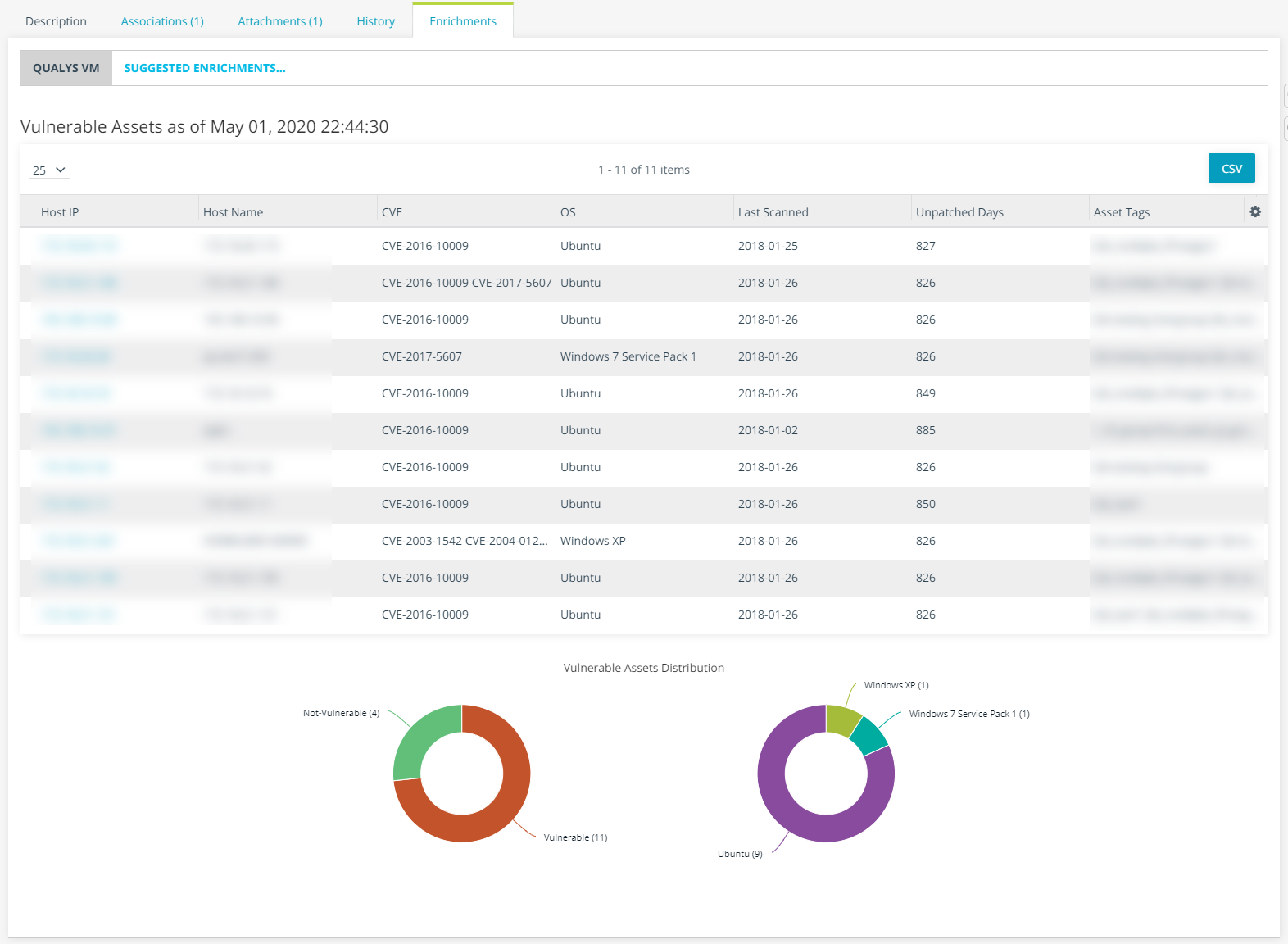
The Qualys Vulnerability Management enrichment renders vulnerable assets in your network from Qualys on details pages of CVE compliant vulnerabilities in ThreatStream. The availability of this network-specific information alongside vulnerability details in ThreatStream enables you to quickly determine the number of assets affected by a particular vulnerability in your network.
Each time you open the Qualys tab in the Enrichments section of vulnerability details pages, the enrichment queries vulnerable assets in Qualys associated with the CVE identifier in the Title or Tags field of the vulnerability in ThreatStream. If results are returned, vulnerable assets are displayed on the Qualys tab. Results are returned for multiple CVEs in cases where the Title or Tags fields contain more than one CVE identifier.
Activating the Qualys Vulnerability Management Enrichment
Activation involves specifying your Qualys username, password, and API URL. Depending on the search option you specify, additional configuration is required.
- Qualys Community Edition accounts are not supported.
- If your Qualys account has access by IP address policy set up, add ThreatStream IP addresses to the Qualys whitelist to ensure successful integration. Contact Anomali Customer Support to request ThreatStream IP addresses.
To activate Qualys Vulnerability Management:
-
Navigate to ThreatStream > APP STORE > APP Store.
-
Click Get Access on the Qualys VM tile.
-
On the Credentials tab, enter the following information:
Field Description User Name User name associated with your Qualys account.
The Qualys user whose credentials you will use for activation must have API access. Additionally, the user must be a manager OR a non-admin user with the "Allow user full permissions and scope" permission.
To verify API access in Qualys:
-
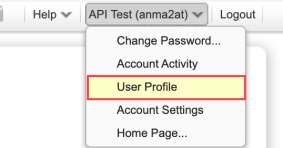
In Qualys, navigate to User Profile in the account menu.
-
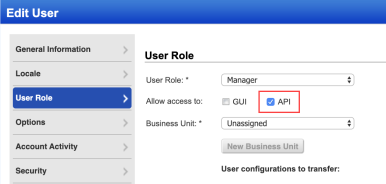
On the User Role tab, ensure Allow access to: API is selected.
- Click Save.
Password Password used to login to your Qualys account.
If your Qualys password contains a colon (:), ThreatStream is unable to activate the enrichment. You must change your Qualys password to a value that does not contain colons in order to activate the enrichment.Qualys API URL URL to access the API associated with your Qualys account. Protocols must be included.
To determine the correct API URL for your Qualys platform, see https://www.qualys.com/platform-identification/ -
-
On the Settings tab, enter the following information:
Field Description Search Options The Qualys Vulnerability Management enrichment enables two search options. The look and feel of the enrichment differs slightly depending on the search option you select. Available search options include:
-
Query Assets API—Returns the most data from Qualys but can result in timeouts for large datasets. Fields displayed for returned assets include: Host IP, Host Name, CVE, OS, Last Scanned, Unpatched Days, and Asset Tags. Asset distributions are also depicted on pie charts.
-
Create a Qualys Patch Report—For best performance, Anomali recommends this option for organizations with large data sets. Fields displayed for returned assets include: Host IP, Host Name, CVE, OS, and Last Detected. Patch reports do not include pie charts. Further, patch reports do not include vulnerabilities for which no patches are available. See Using the Qualys Vulnerability Management Enrichment with Qualys Patch Report for additional features that are available when you use the Qualys Patch Report search option.
Patch reports are generated based on the date range you select and include assets from the Asset Group, IP ranges, or tags you specify. You can use multiple parameters to specify the assets of interest. By default, patch reports are generated with no date limit and include all assets.
Important: The Qualys user whose credentials you use to activate the enrichment must have all permissions in Qualys required to generate reports. For more information on these permissions, see the Launch Report API article in the Qualys API User Guide: https://www.qualys.com/docs/qualys-api-vmpc-user-guide.pdf
Patch Reports generated by launching the integration in ThreatStream are automatically deleted in Qualys after seven days.
Date Range
(Patch reports only)
Specify the date range for the vulnerability information you want the patch report to include. Asset groups
(Patch reports only)
Specify the asset groups you want the patch report to include. Asset groups are case-sensitive. Enter the exact name of the asset group of interest. If entering multiple asset groups, specify one group per line. Asset IP(s)/range(s)
(Patch reports only)
Specify the IP ranges of the assets you want the patch report to include. If entering multiple IP ranges, specify one IP range per line. Asset tags
(Patch reports only)
Specify the asset tags you want the patch report to include. All assets associated with the specified tags in Qualys are included. Asset tags are case-sensitive. Enter the exact name of the asset tag of interest. If entering multiple tags, specify one group per line. Note: Anomali recommends testing the specified asset filter options before activating the enrichment on ThreatStream. You can test your filter on the Qualys user interface by navigating to Reports > Templates > New > New patch template and opening the Findings tab. -
- Click Activate.
The Qualys Vulnerability Management enrichment is now active.
Using the Qualys Vulnerability Management Enrichment
After activating the enrichment, vulnerability information from Qualys is retrieved each time you open the Enrichments tab on a vulnerability details page. You can click the Host IP of an asset to drill down on asset details within Qualys.
Using the Qualys Vulnerability Management Enrichment with Qualys Patch Report
If you configured the enrichment to use the Create a Qualys Patch Report search option, two additional features are available to you.
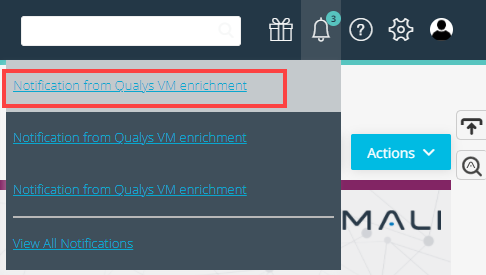
First, ThreatStream notifies you when patch reports have been successfully generated. When you open the Enrichments tab on a vulnerability details page, the enrichment initiates the patch report generation process. When patch report generation is complete, you receive a notification on the top navigation bar. If you navigated away from the details page, you can click the notification to drill down on the vulnerability and view the patch report.
Second, a Refresh button is available. Click Refresh to generate a new patch report and get the latest information from Qualys.

You cannot click Refresh while patch report generation is in progress.
Exporting Qualys Data in CSV Format
Returned data displayed in the table can be exported in CSV format.
To export Qualys information in CSV format:
-
Navigate to the details page of the vulnerability of interest.
To search for a vulnerability:
- Navigate to ThreatStream > Analyze > Threat Model.
- Select Vulnerabilities in the filter on the right side of the screen. Vulnerabilities are not included in search results unless this filter is selected.
- Enter your search query.
- Click the name of the vulnerability of interest in the search results to visit its details page.
See Accessing Threat Models for more information on searching for Threat Model entities.
- On the vulnerability details page, open the Enrichments tab and click Qualys VM. If available, details on vulnerable assets in your network are displayed.
-
To export these results in CSV format, click CSV.

Your download starts automatically.